
Delete or unpublish a chapter
Take a chapter away from readers, or remove it from your book for good.
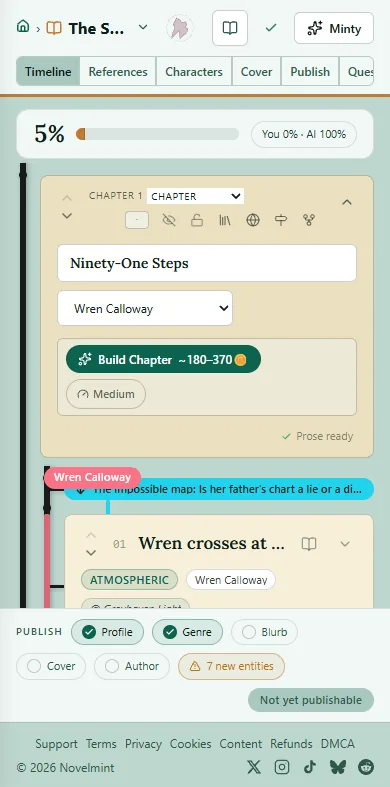
To take a chapter away from readers, open your book's Timeline tab and click the chapter's title row to expand it.
In the chapter's row of icons, click the eye. Its tip reads Published (click to unpublish). The chapter goes private at once and the rest of the book stays live. Click the crossed-out eye to publish it again.
While a chapter is private, readers can't open it, including readers who unlocked it. Unlocking gives access to a published chapter, not a copy to keep, and their access comes back when you publish it again.
To delete a chapter from your book, empty it first. Expand each beat and click Delete beat, then Yes, delete. For a beat you want to keep, click Move to chapter… instead.
When the last beat is gone, the chapter shows Start this chapter. Click Delete this chapter under it and confirm. If the chapter still has saved prose, type delete to confirm. Deleting can't be undone, and every later chapter moves up one number.

Related
Steps checked against the Studio on November 11, 2026.