
Change a book's title, blurb or cover
Rename a book, rewrite the description readers see, or give it a new cover.
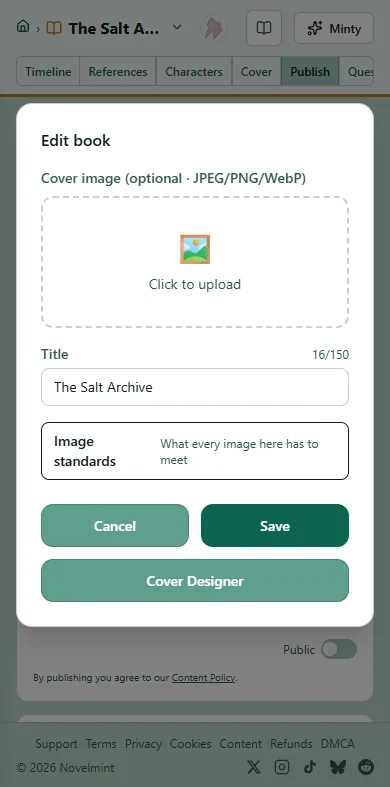
Open your book's Publish tab and click the pencil next to the book's title. In Edit book, change the Title and click Save. A live book's page updates too, and its web address stays the same.
The blurb is the Story Summary on the same tab. Type up to 1,000 characters, or click Suggest for a draft and Use this to keep it. Click Save English (source) to save it; the other languages are translated from it.
To upload a finished cover, open Edit book again, click the box under Cover image, pick a JPEG, PNG or WebP file and click Save.
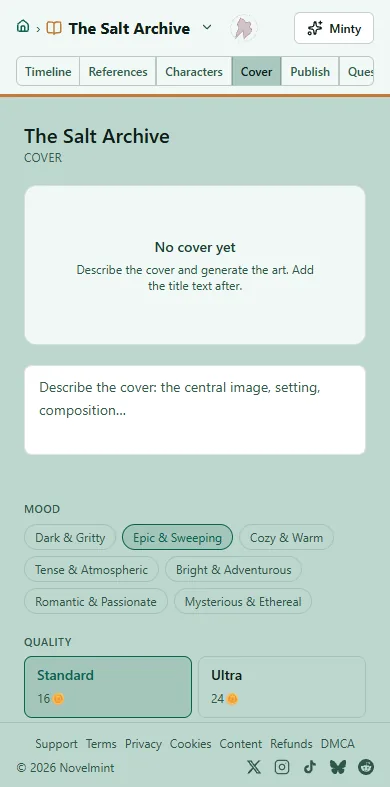
To make a cover in Novelmint, open the Cover tab or click Cover Designer in Edit book. Describe the cover, generate it, and click Set as cover on the one you want. You can add the title text after.


Related
Steps checked against the Studio on November 11, 2026.